
CSS Customization - How to change property field icon into any image?
1 minute read
This article shows how to change default icon into any image ( .jpg / .png)
-
1
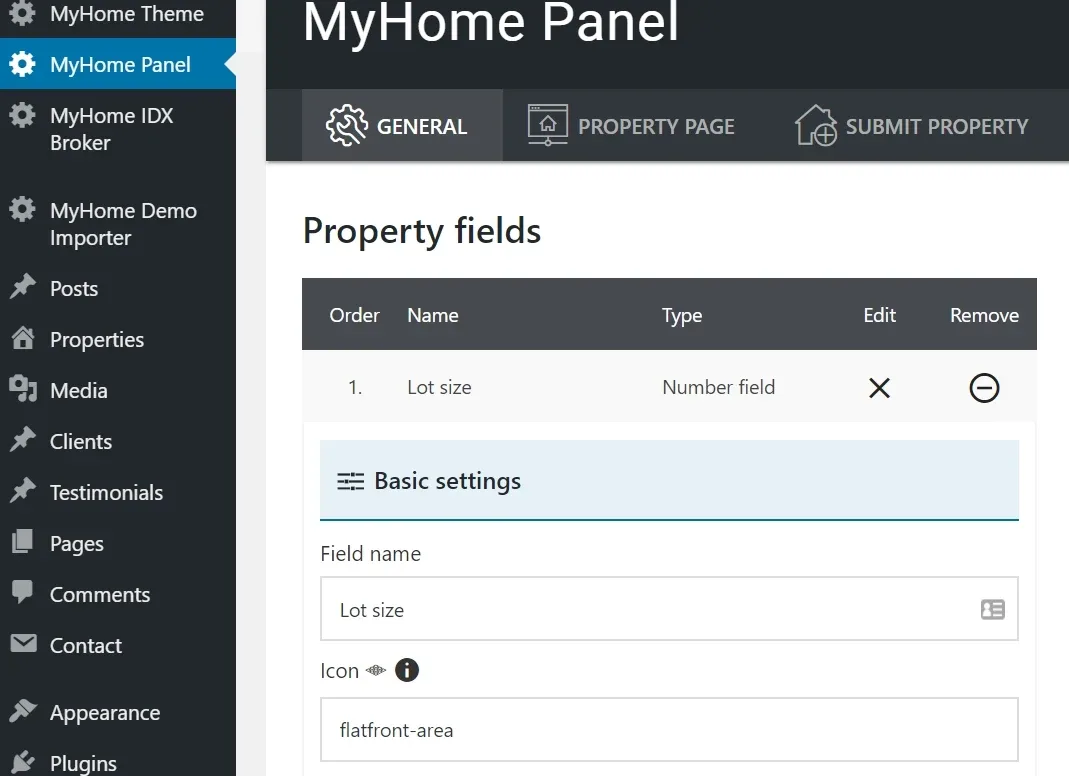
Add any icon e.g. Lot size >> Area icon
-
2
You can check "Display on the property cards" option

-
3
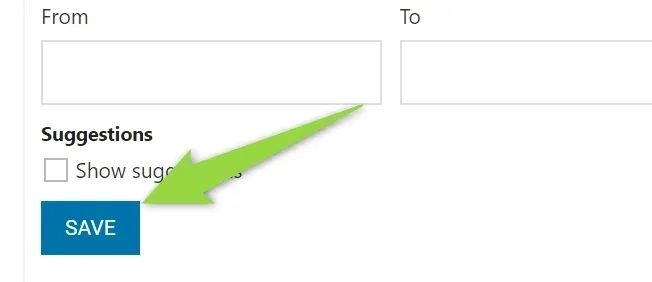
Save field
-
4
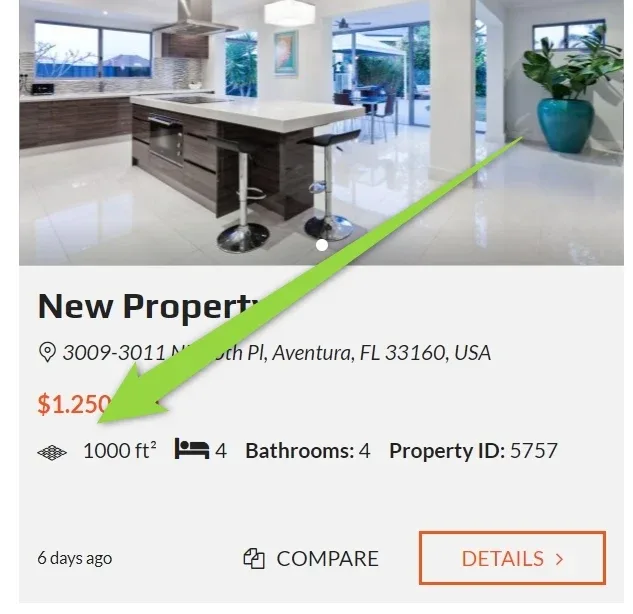
New icon will be available on the card
-
5
Click right mouse button on the icon and check its code e.g. via Google Chrome -> Inspect
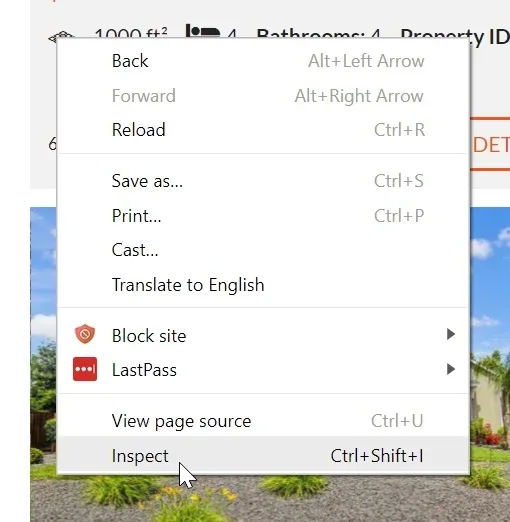
- 6 You will see the icon code
There are 2 possible examples:
A. Flaticon - in this case name is flaticon-xxxxx e.g. flaticon-area
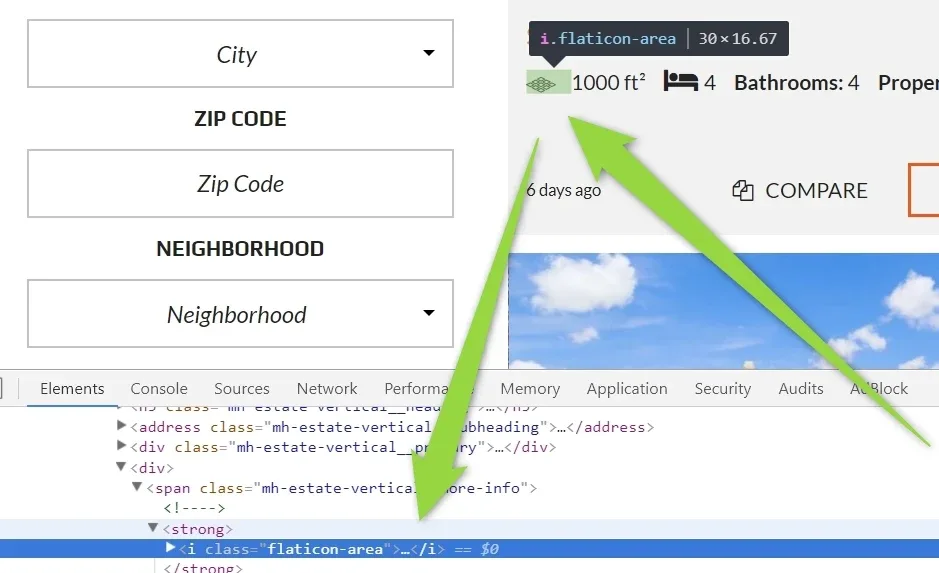
B. Font Awesome - code is fa-xxxx e.g. fa-bad (ignore first "fa")
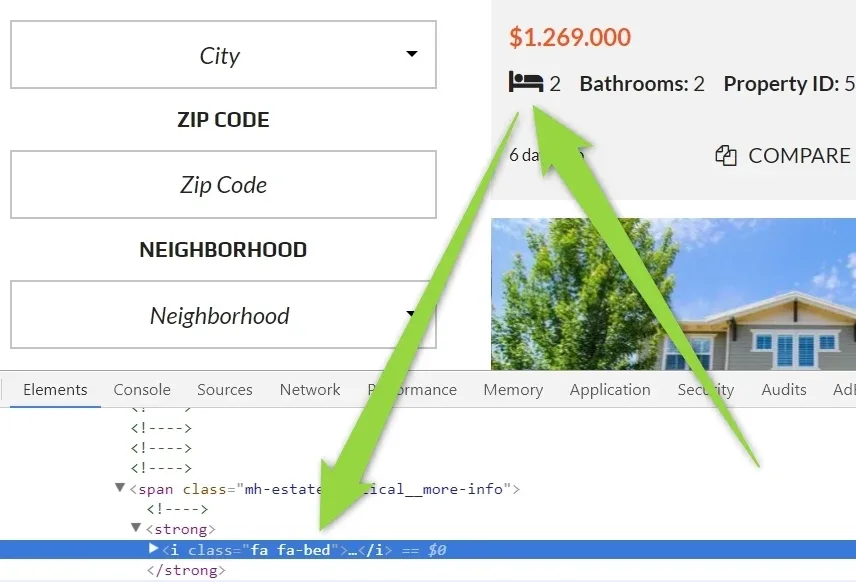
7. To change icon to any image use following codes
A. Flaticon code example:
css
.flaticon-area:before {
content: url(https://dummyimage.com/25x25/ff00ff/fff.jpg)!important;
position: absolute!important;
left: 0!important;
margin-top: -1px!important;
}
B. Fontawesome code example:
css
.fa-bed:before {
content: url(https://dummyimage.com/25x25/ff00ff/fff.jpg)!important;
position: absolute!important;
left: 0!important;
margin-top: -1px!important;
}
you need:
- change url of the image
- change left and margin top to align icon how you wish
It will look like this:
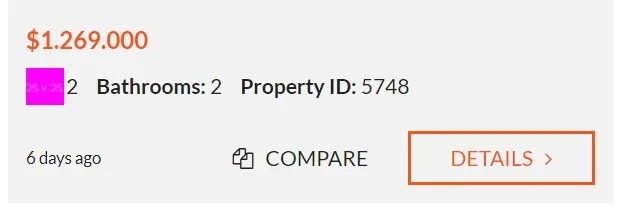
Ask the people who build MyHome WPBakery
We answer by email from support@tangiblewp.com. With Premium Support, we also fix your site when something breaks.
We can also run your site for you, or build a new one.
Was this guide helpful?