
WP All Import - Unofficial Addon to import CSV / XML
2 minute read
While we don't officially support WP All Import for MyHome, we have developed a special addon that enables its use in most scenarios. Here's how to get started:
- 1 First, install the WP All Import plugin from: https://wordpress.org/plugins/wp-all-import/
-
2
Next, install the MyHome WP All Import Addon, which can be found at: [https://support.myhometheme.net/helpdesk/attachments/101080941275](https://support.myhometheme.net/helpdesk/attachments/101080941275 )
The following is a step-by-step guide on how to utilize this addon:
-
1
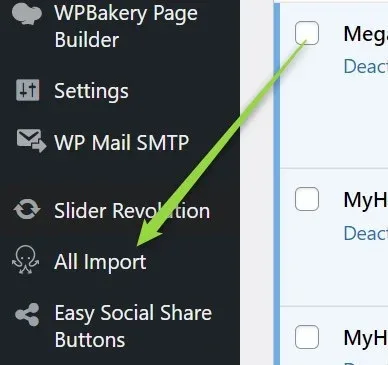
Open the "All Import" plugin.
-
2
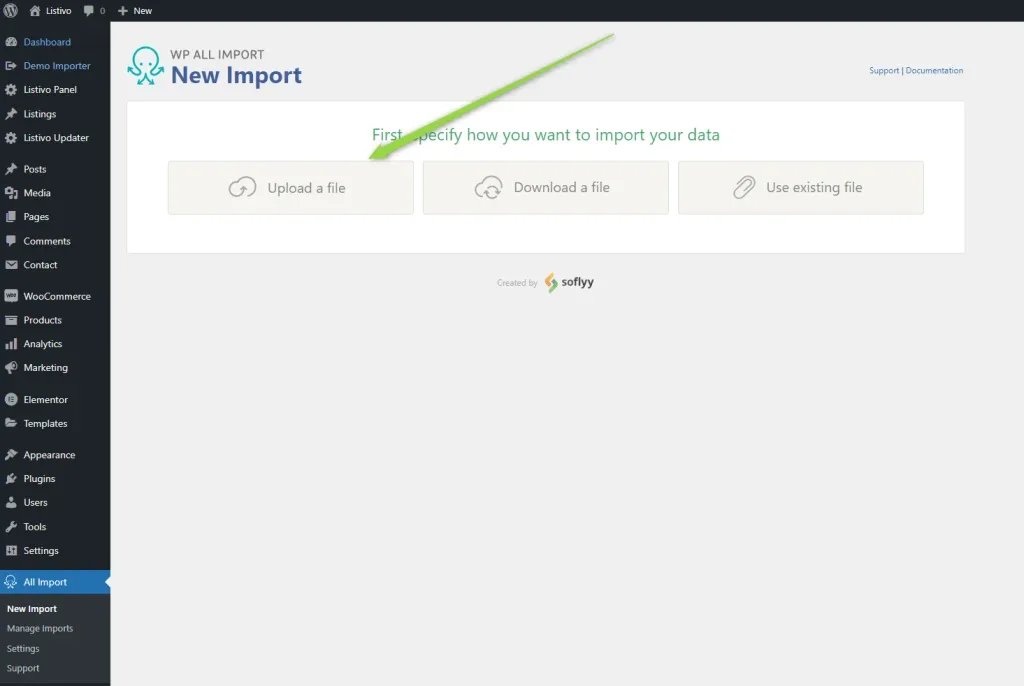
Click on “Upload a file”.
-
3
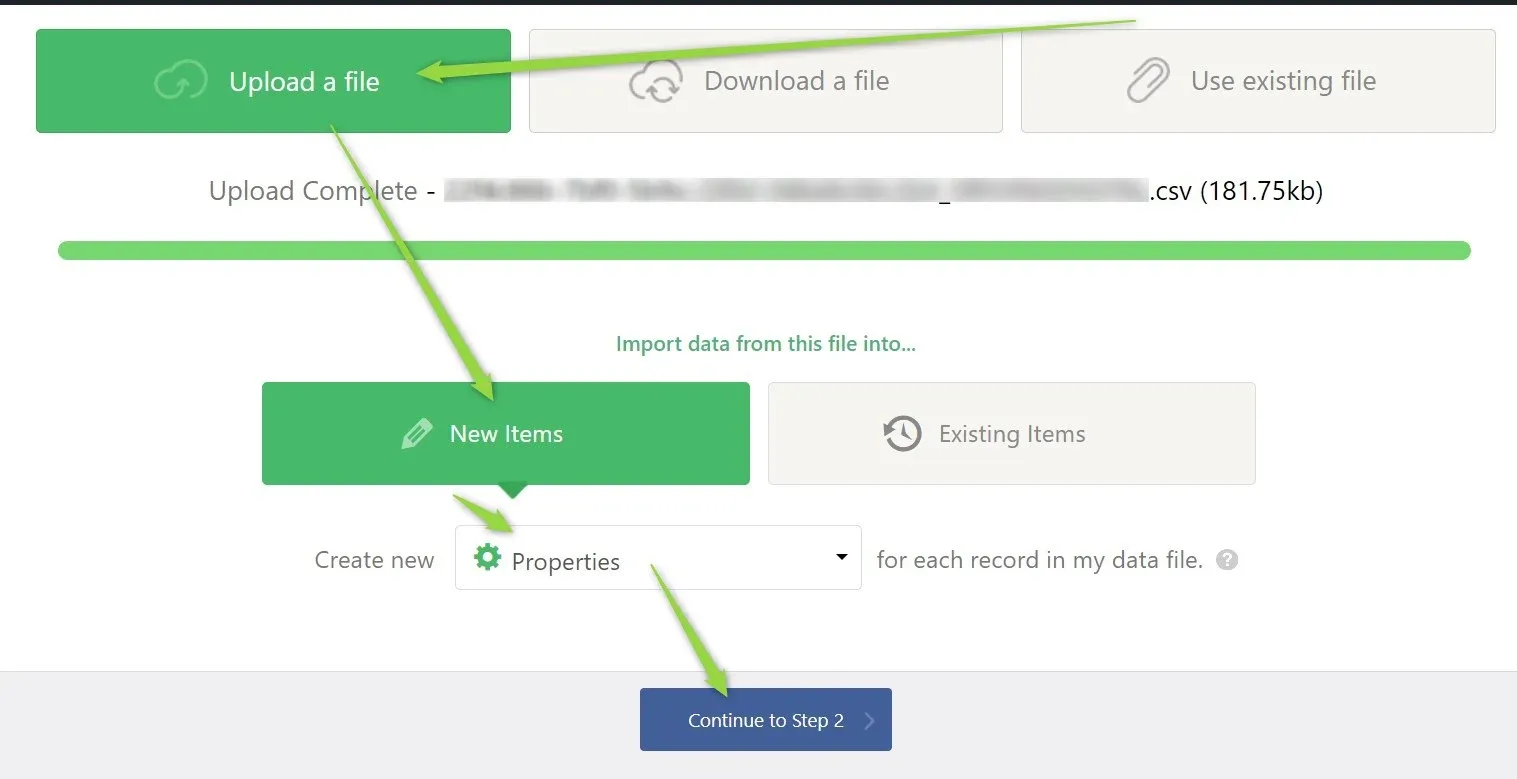
Select “Properties” and click the “Continue to Step 2” button.
-
4
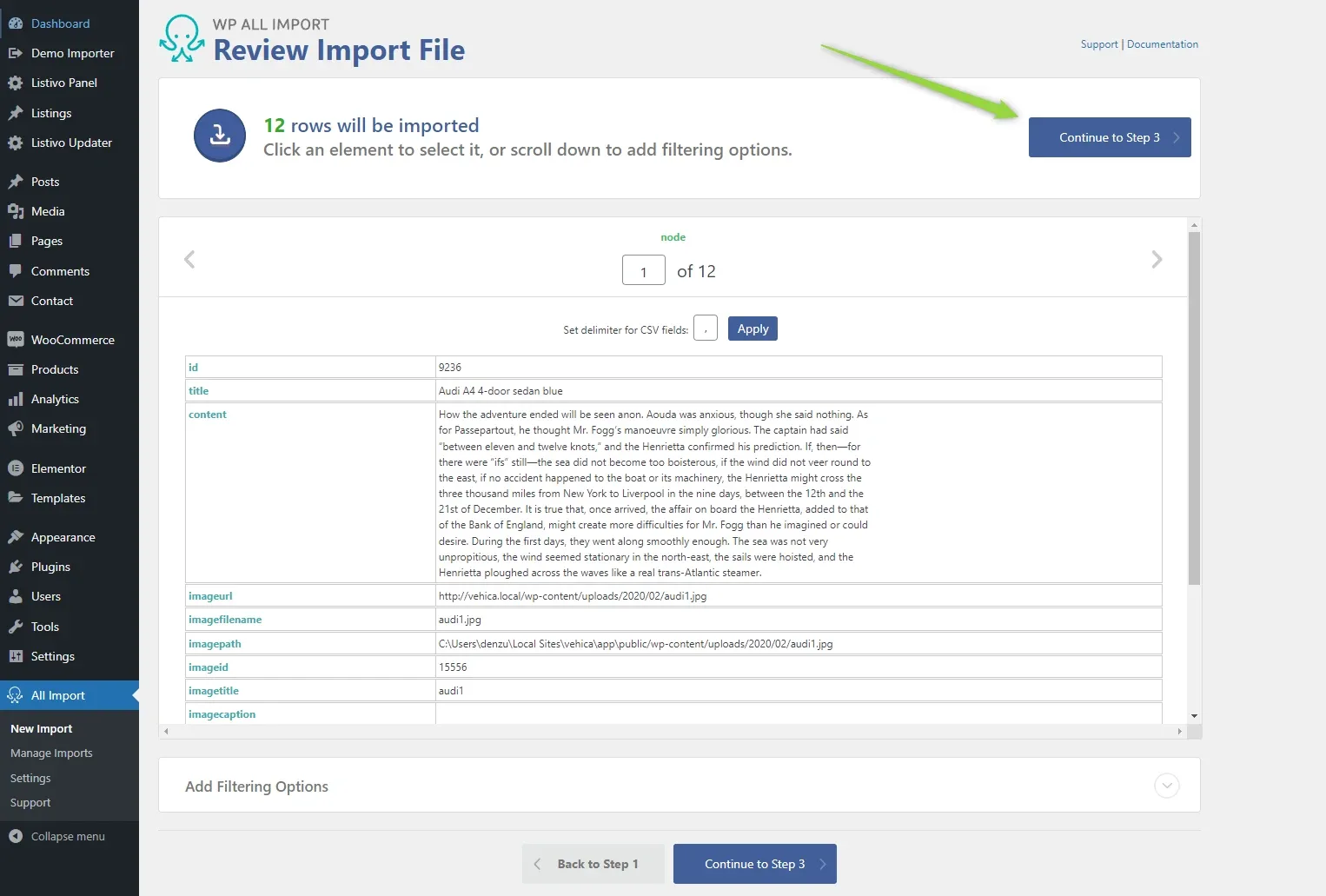
Proceed to step 3.
- 5 "Drag and drop" the variables from the right column to the field you wish to import to. For instance:
A. Start with Name and Description.
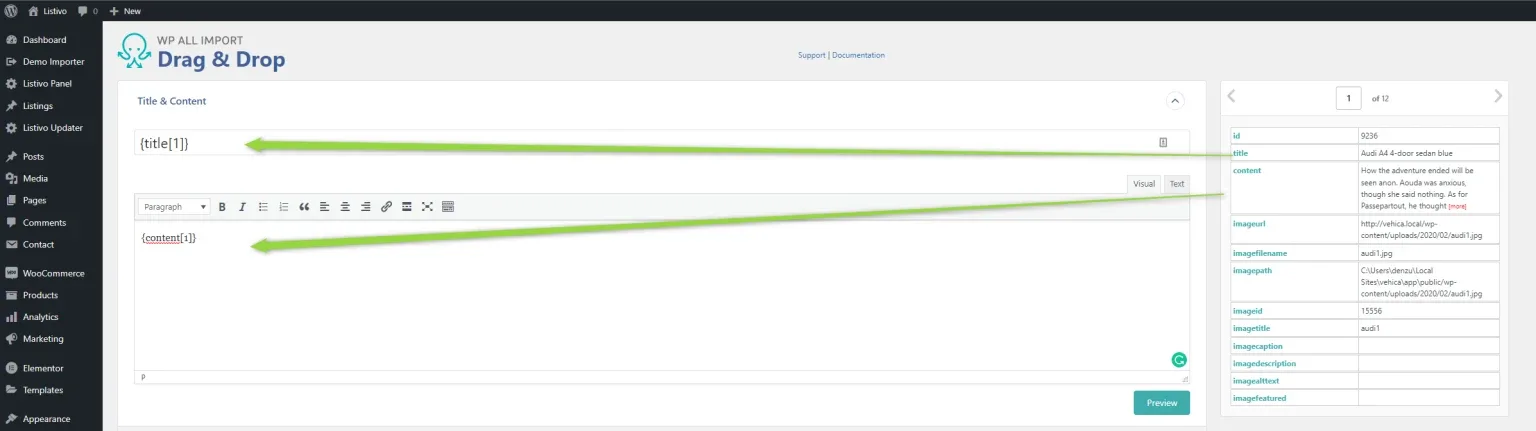
B. Copy fields like Price.
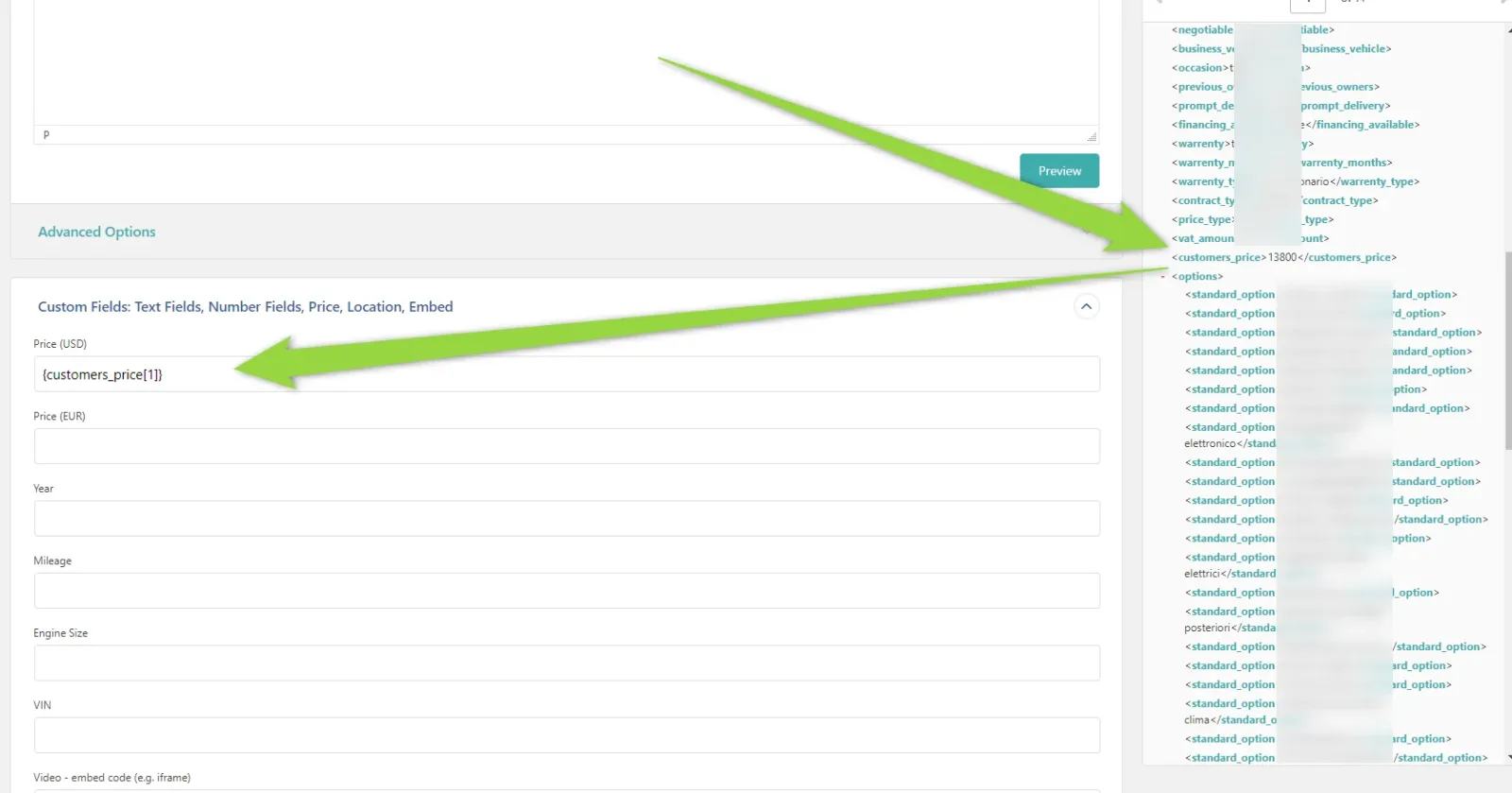
C. Drag and drop “Taxonomies”, such as “Property Type” / “Features”
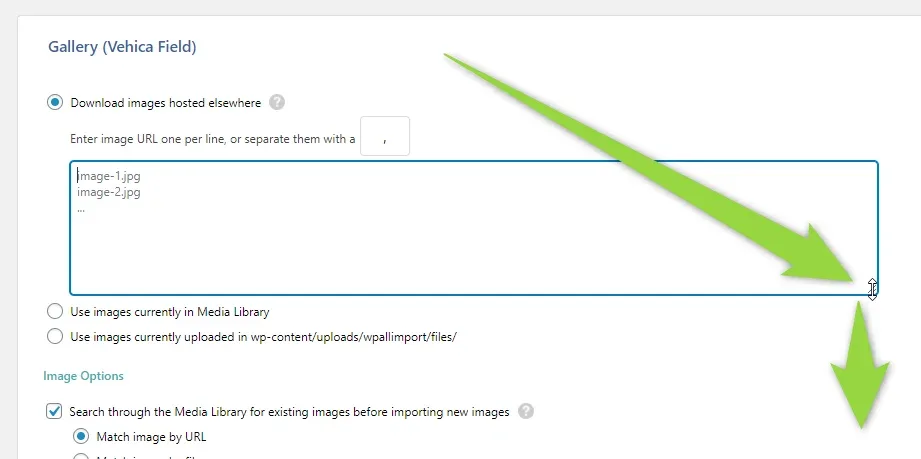
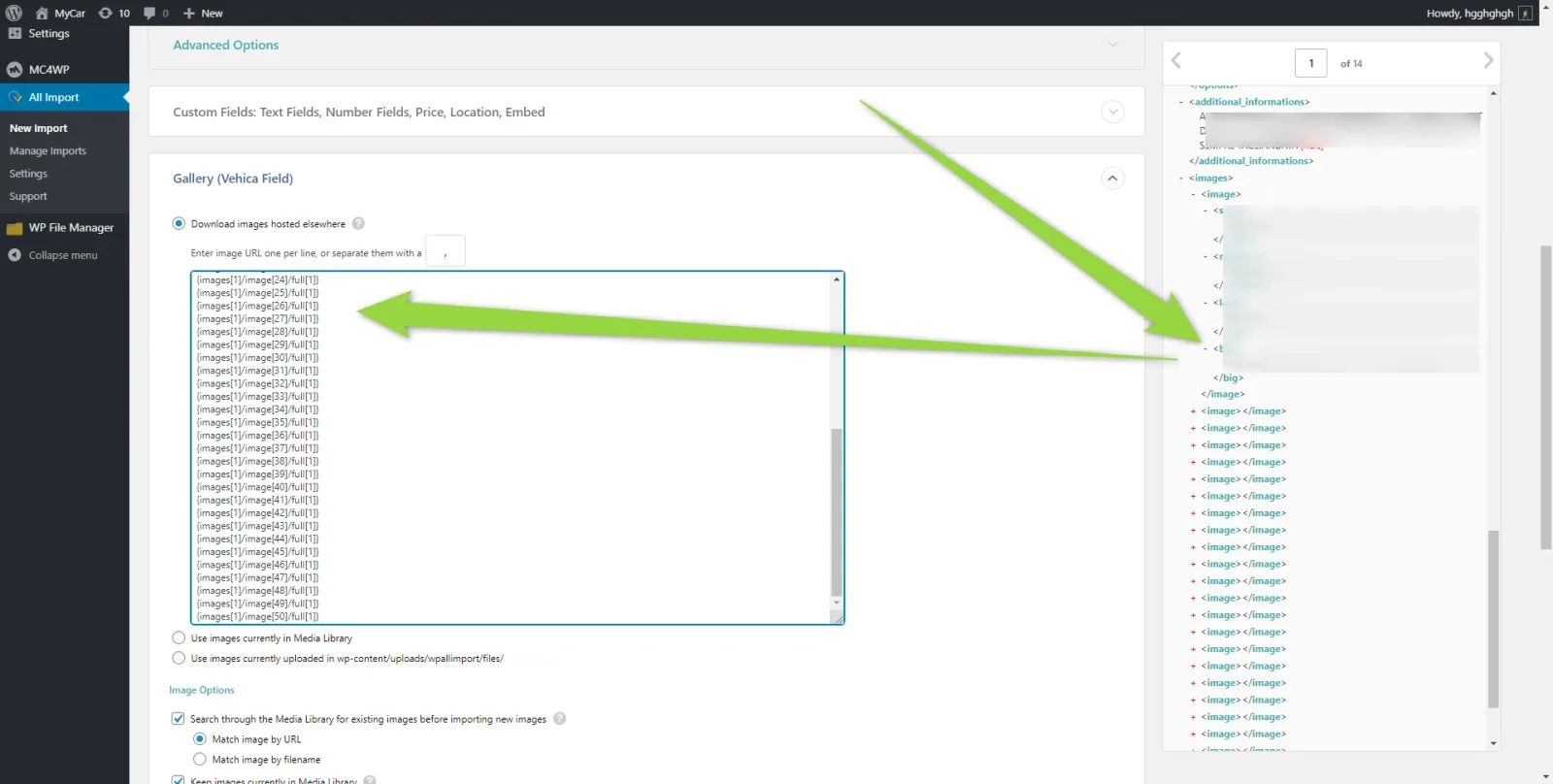
7. “Drag and drop” Gallery Images URLs.
Firstly to make it easier extend area where you will add links
Note: The original vehicle XML we use has up to 50 images. We recommend importing only “full images” as thumbnails will be generated automatically during the import. Typically, the image paths will resemble the screen below, where numbers 1-50 in the URLs refer to the first, second, third… 50th image in the gallery.
You can find more information about importing images here:
.
8. Continue to Step 4
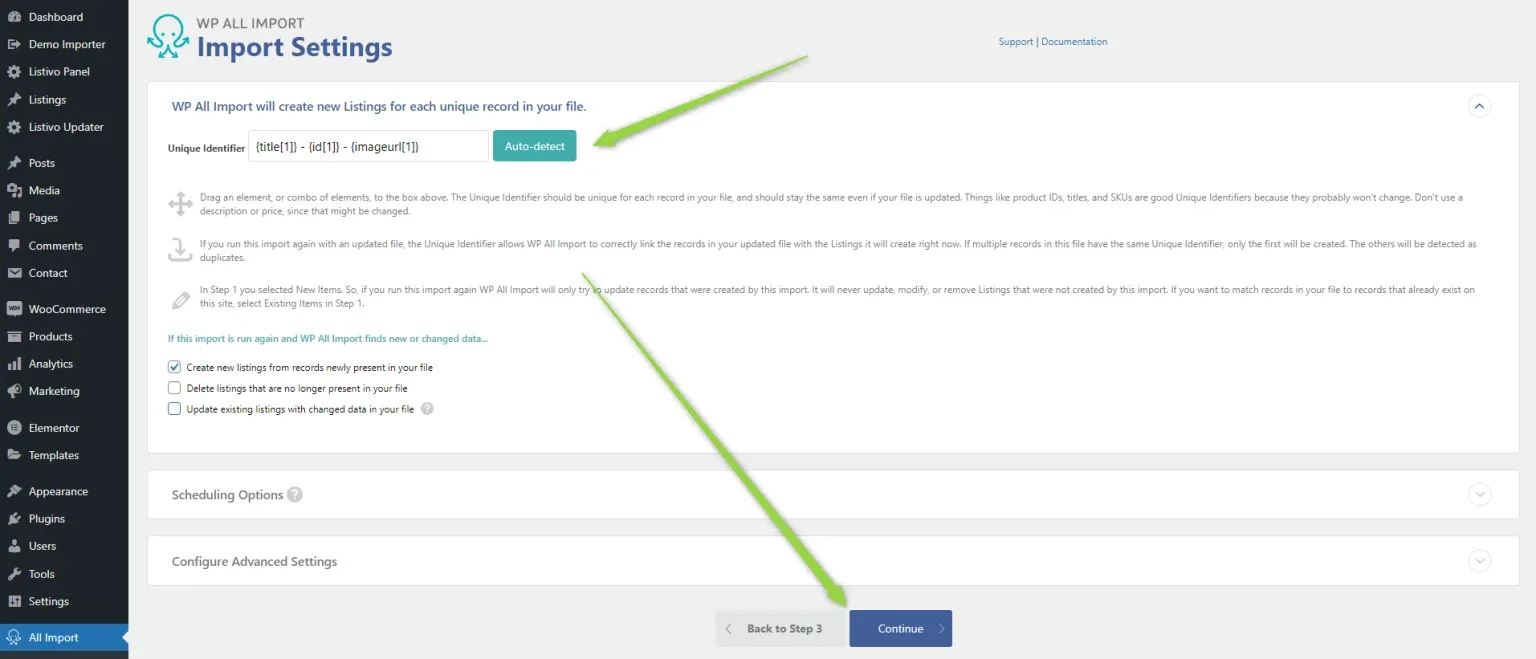
9. Click “Auto-detect”
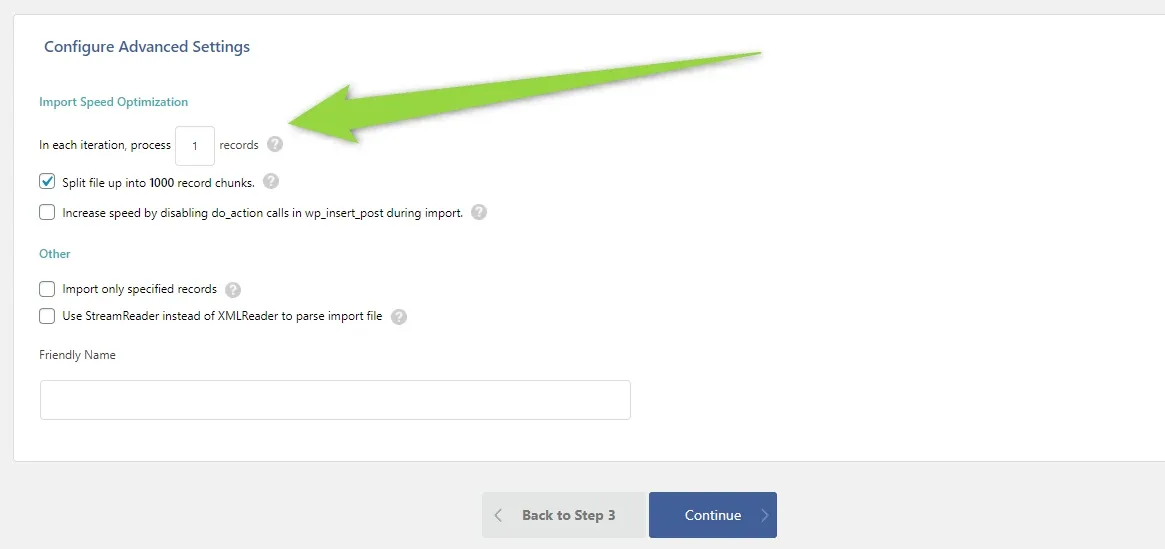
10. Please make sure “In each iteration, process 1 record” option is selected
11. Click “Continue” button
12. Click “Continue & Run Import” button
13. Wait
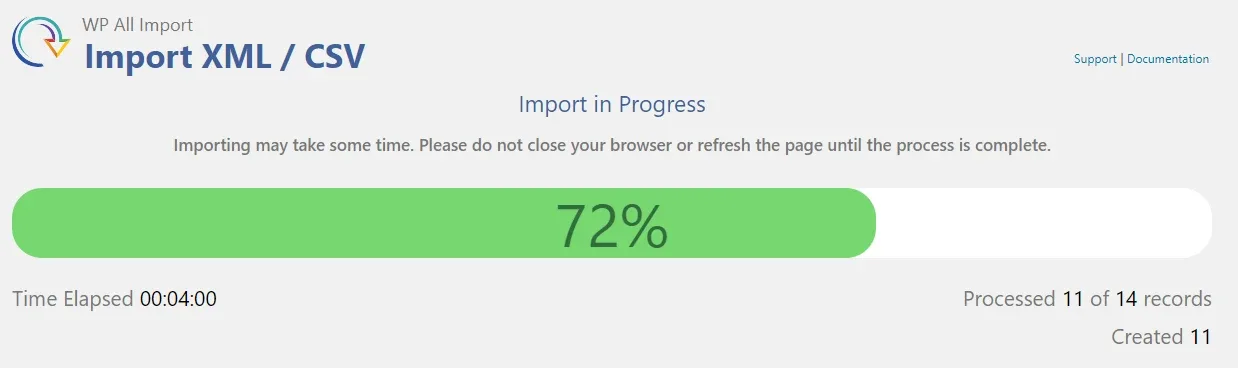
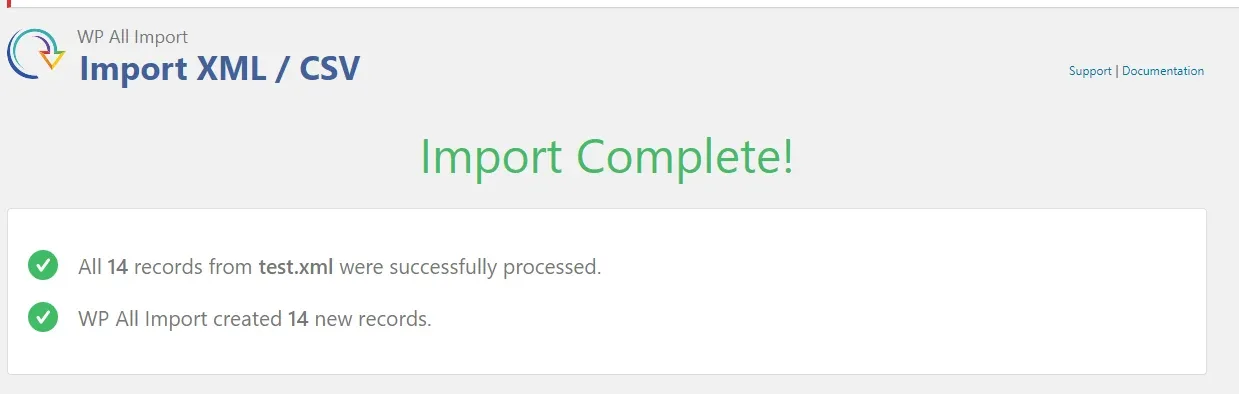
14. Done
Ask the people who build MyHome WPBakery
We answer by email from support@tangiblewp.com. With Premium Support, we also fix your site when something breaks.
We can also run your site for you, or build a new one.
Was this guide helpful?