Activating the 'Share on Facebook' Feature with an Image
Facebook only shows a listing's featured photo when your site provides a Facebook App ID. Create a free Facebook app, paste its ID into the MyHome Panel, and refresh any links you already shared.
2 minute read
To enable the "Share on Facebook" feature with an image, as shown in the example below, you need to provide your Facebook App ID in the MyHome Panel.
For instance, when you visit any listing link such as https://myhome1.tangiblewp.com/listing/minimalist-style-flat/ and click the "Share on Facebook" button:
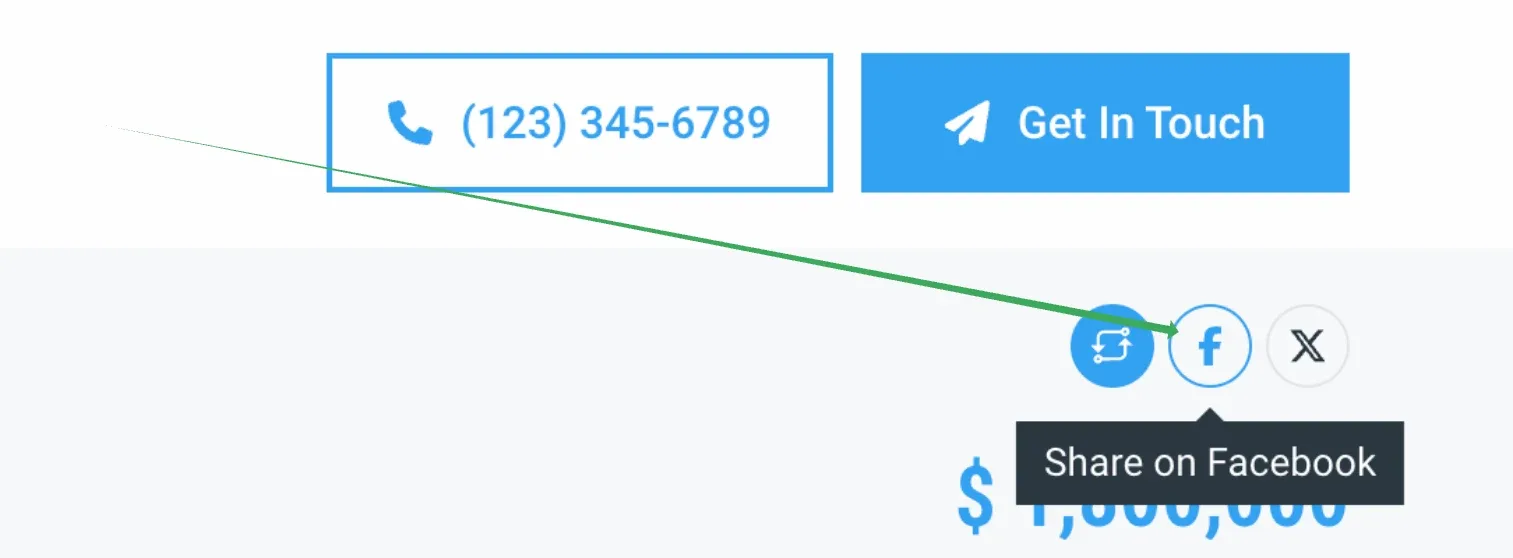
Facebook should suggest an image.

Create a Facebook app and add its ID to MyHome
Please follow the steps outlined below to set this up:
- 1 Open the Facebook Developers site
-
2
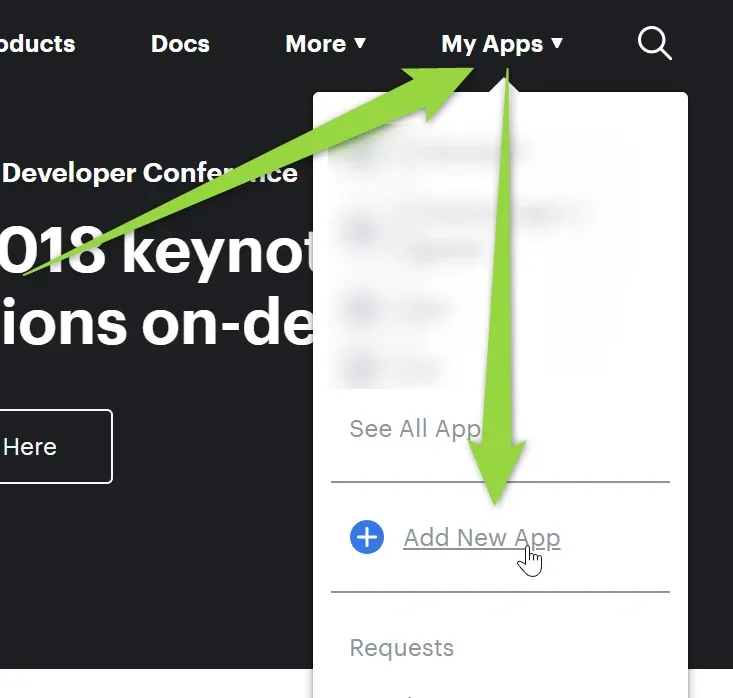
Create a new app
Click Create App or Add a New App.
-
3
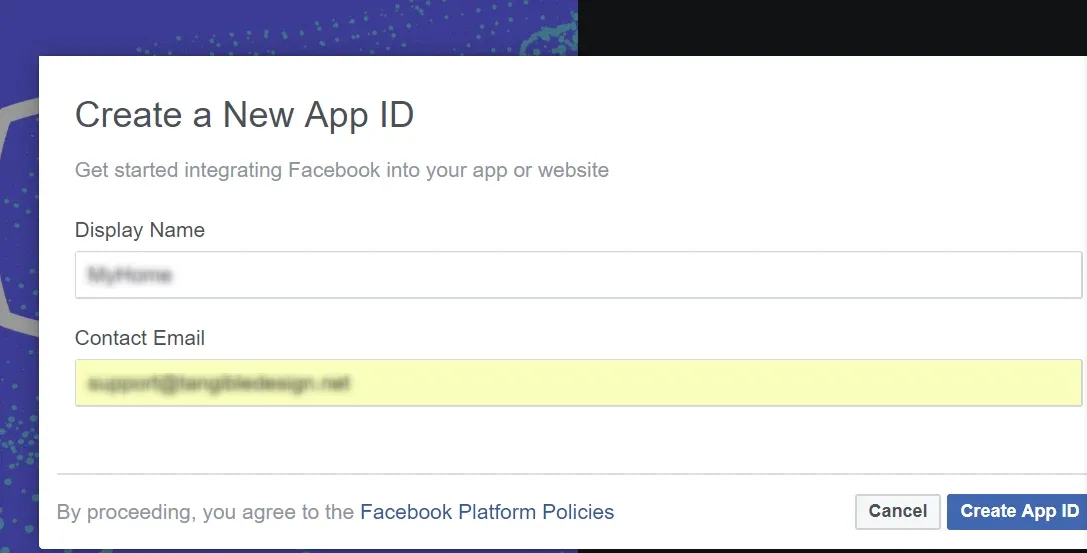
Name the app
Fill in the name of your new app and provide your email address.
-
4
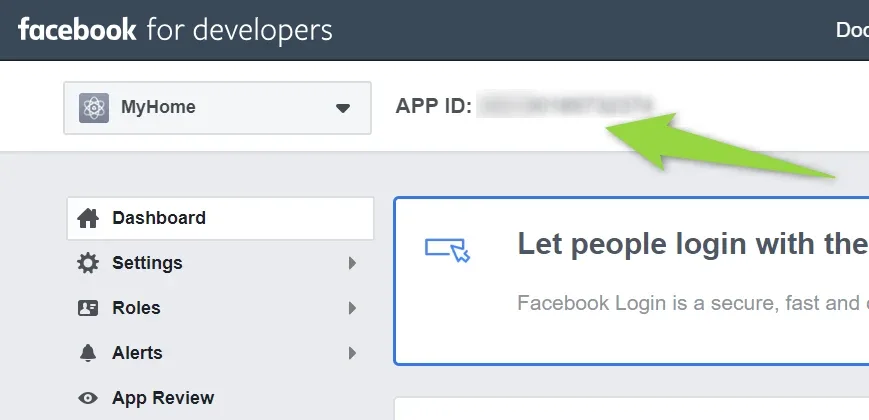
Copy the App ID
After your app is created, copy the App ID shown next to the app name at the top of its dashboard.
-
5
Paste the App ID into MyHome
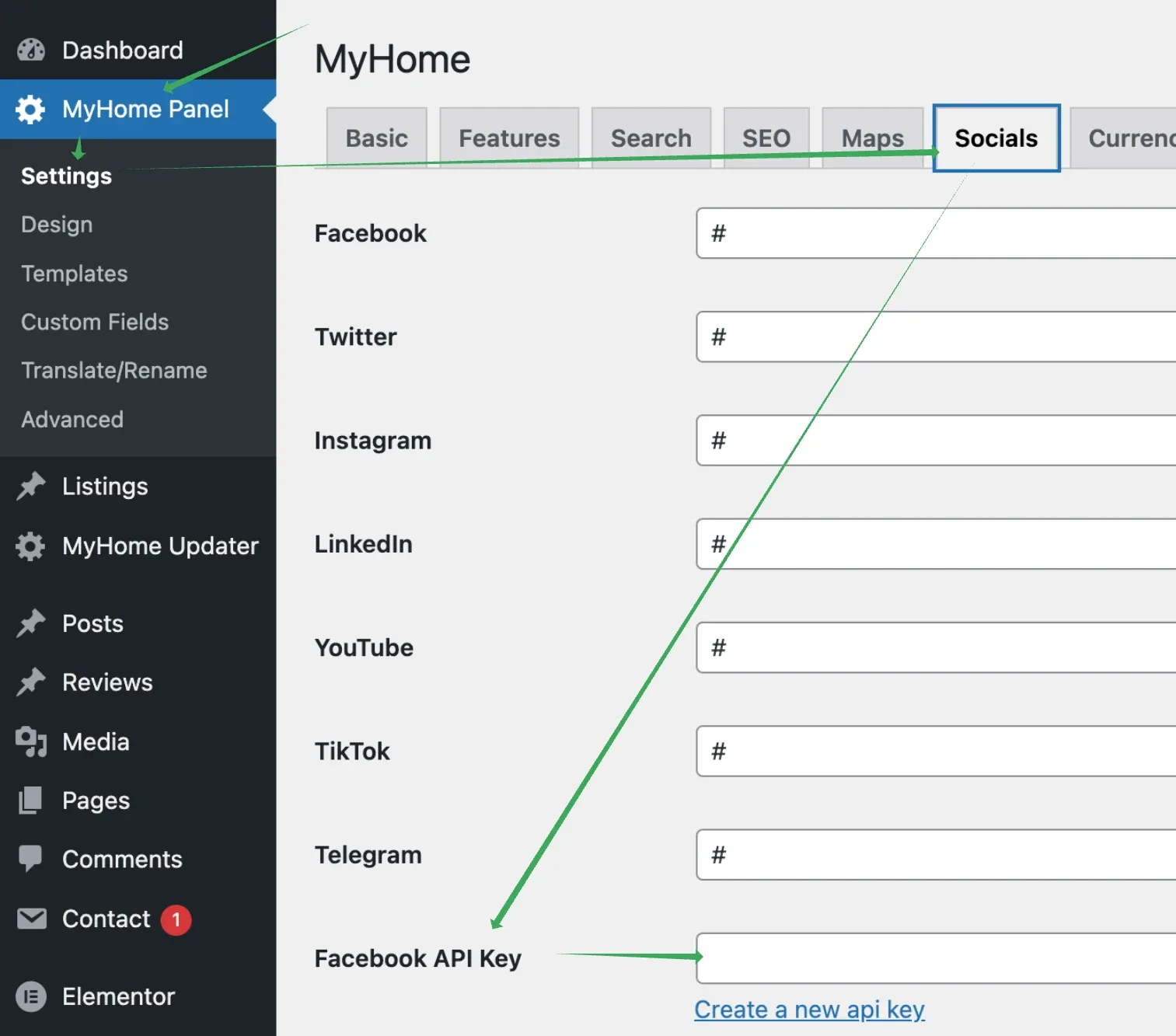
Navigate to MyHome Panel → Settings → Socials and paste the App ID into the Facebook API Key field.
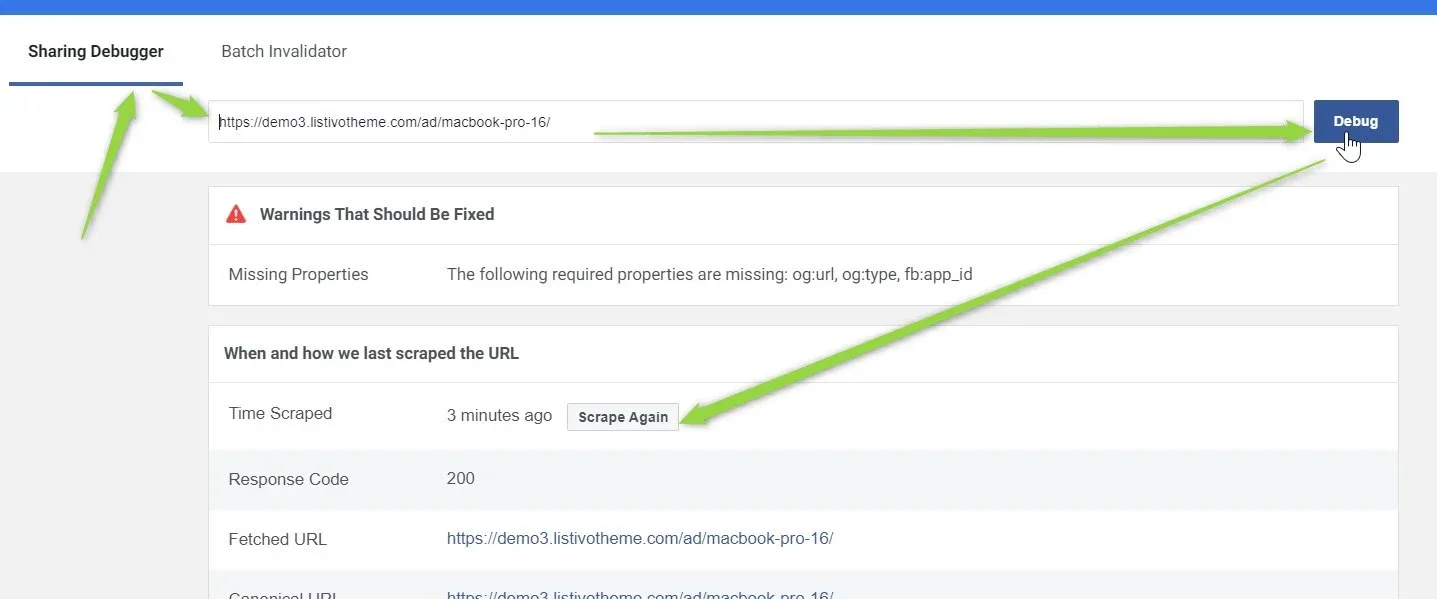
The Facebook debugging tool lets you update the information Facebook uses when it displays shared links from your site. Enter your URL and click Scrape Again, and Facebook will fetch the most recent information from your site, including the featured image.
Ask the people who build MyHome
We answer by email from support@tangiblewp.com. With Premium Support, we also fix your site when something breaks.
We can also run your site for you, or build a new one.
Was this guide helpful?