How to Install MyHome Theme
Install MyHome on your own WordPress site: download the theme file, upload and activate it, pick a page builder, install the plugins it needs and import a demo, so you start from a finished site instead of a blank one.
3 minute read
Before you start
- A WordPress site where you are an administrator, on hosting that meets the minimum PHP requirements
- Your MyHome download: the Download button under Licenses in your TangibleWP account, or your ThemeForest downloads
Download the theme file
-
1
Bought from us: download from your account
Sign in at app.tangiblewp.com, open Licenses and click Download on your MyHome license. The file is the theme zip WordPress installs as it is.
-
2
Bought on ThemeForest: download the installable file
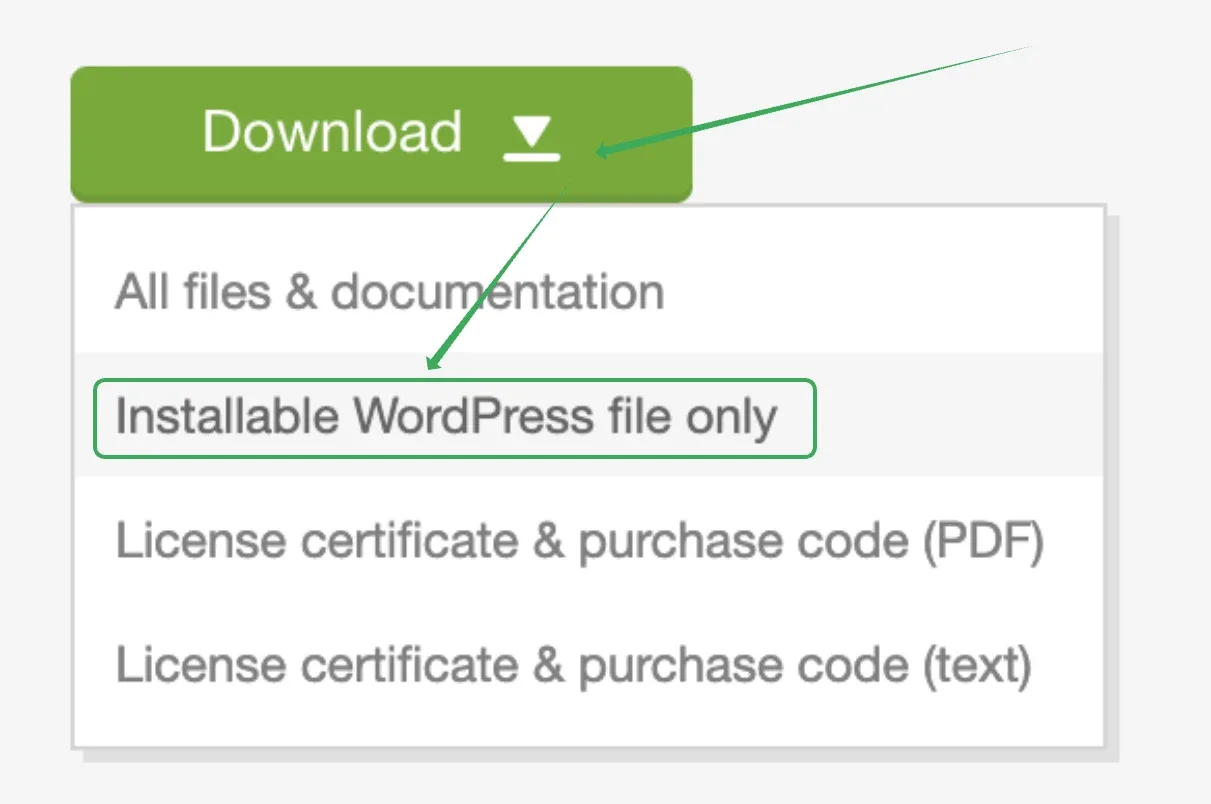
Go to themeforest.net/downloads, open the Download menu next to MyHome and choose Installable WordPress file only. Do not upload All files & documentation: that package holds the documentation and other extras, and WordPress rejects it.
Install and activate the theme
-
1
Log in to WordPress
Sign in to the admin panel of the site you are installing MyHome on (
wp-admin). -
2
Open the Themes screen
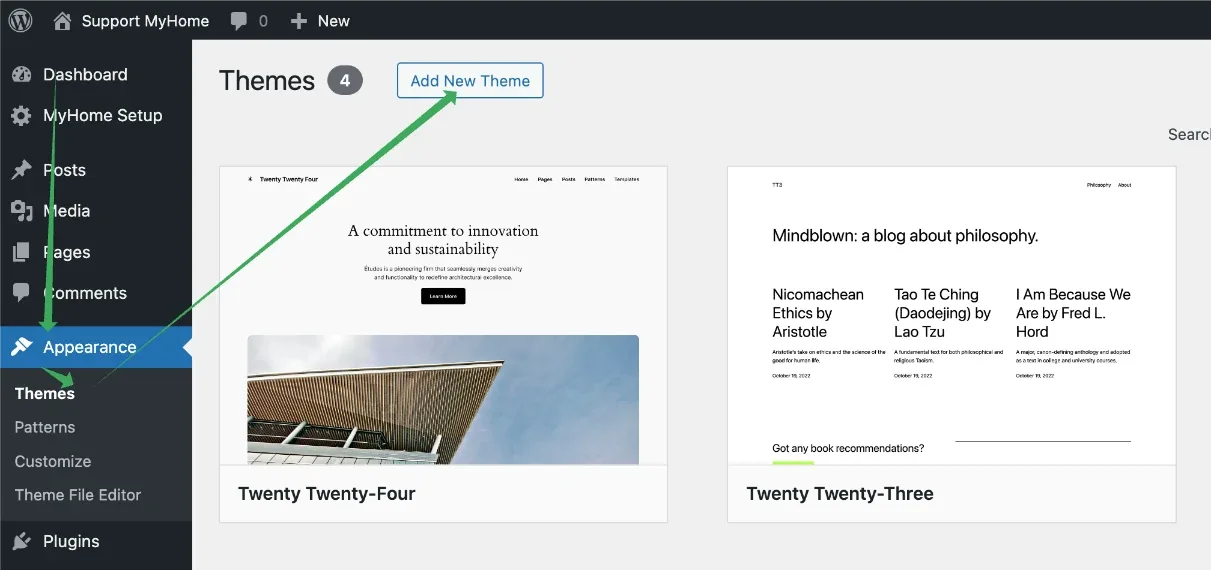
Hover over Appearance in the left sidebar, click Themes, then click Add New Theme.
-
3
Upload the theme file
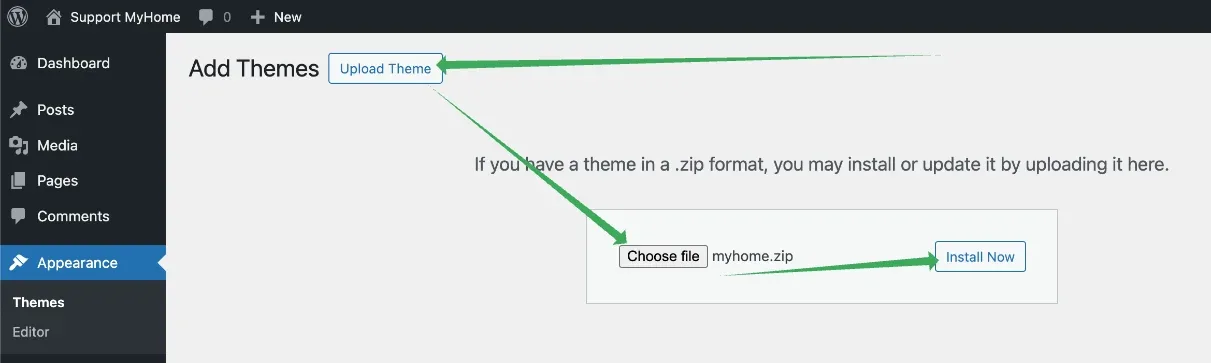
Click Upload Theme, then Choose File, pick the MyHome zip you downloaded and click Install Now.
-
4
Activate the theme
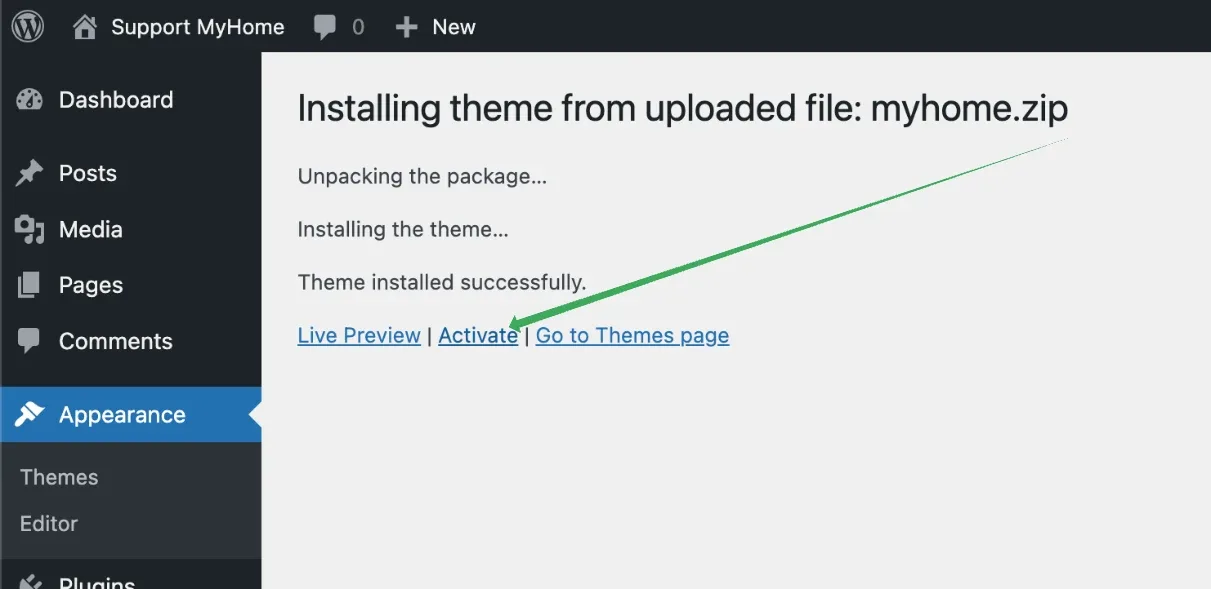
When the installation finishes, click Activate.
-
5
Choose your page builder
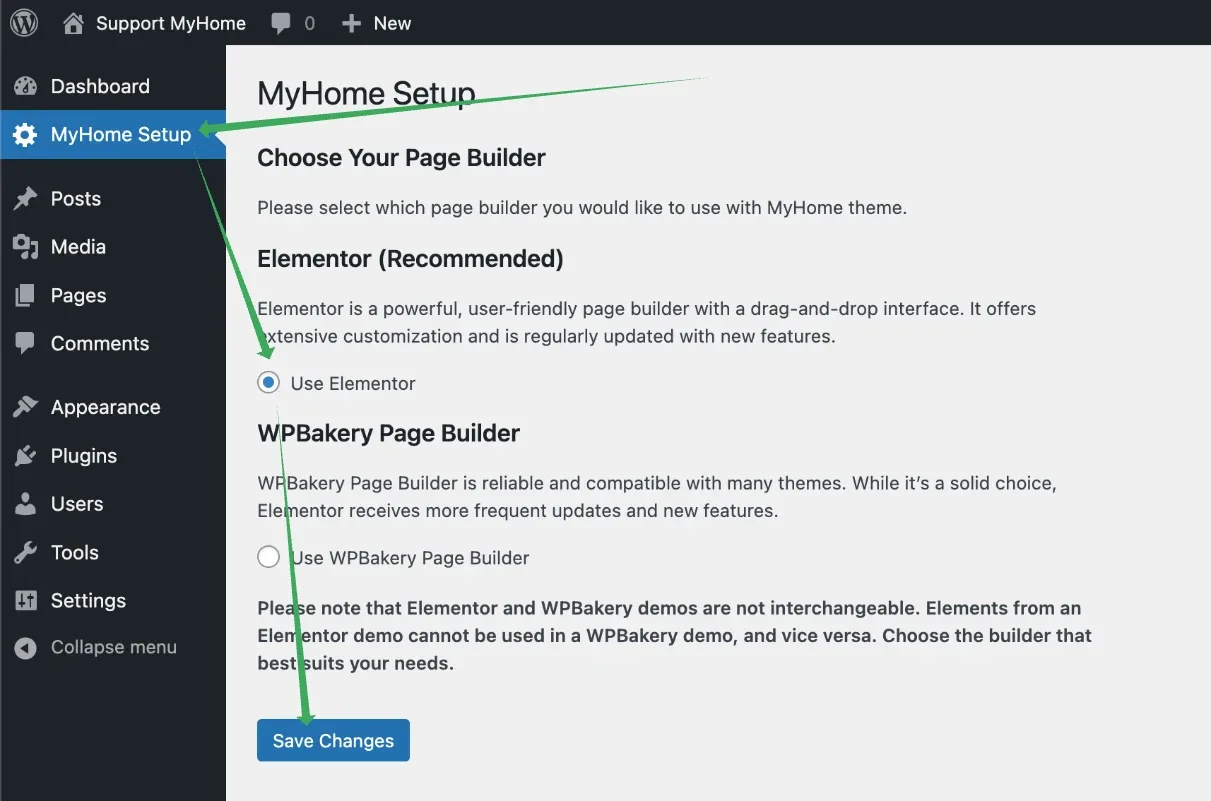
You land on MyHome Setup. Select Use Elementor and click Save Changes.
Install the plugins and import a demo
-
1
Start the plugin installer
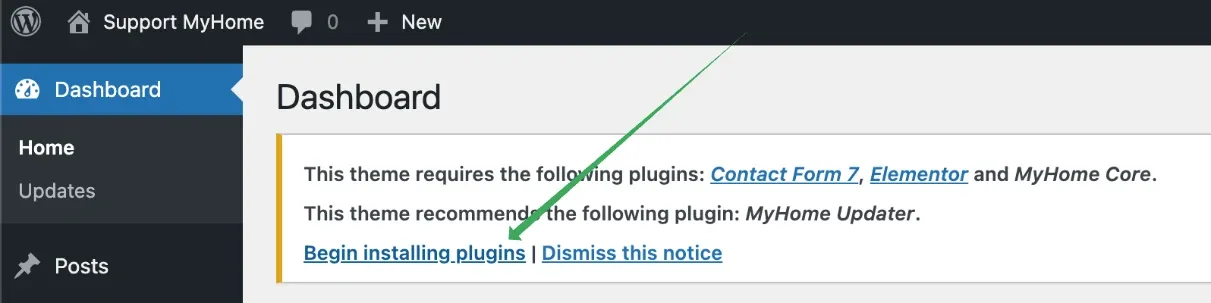
The dashboard shows a notice that MyHome requires Contact Form 7, Elementor and MyHome Core, and recommends MyHome Updater. Click Begin installing plugins.
-
2
Install all four plugins
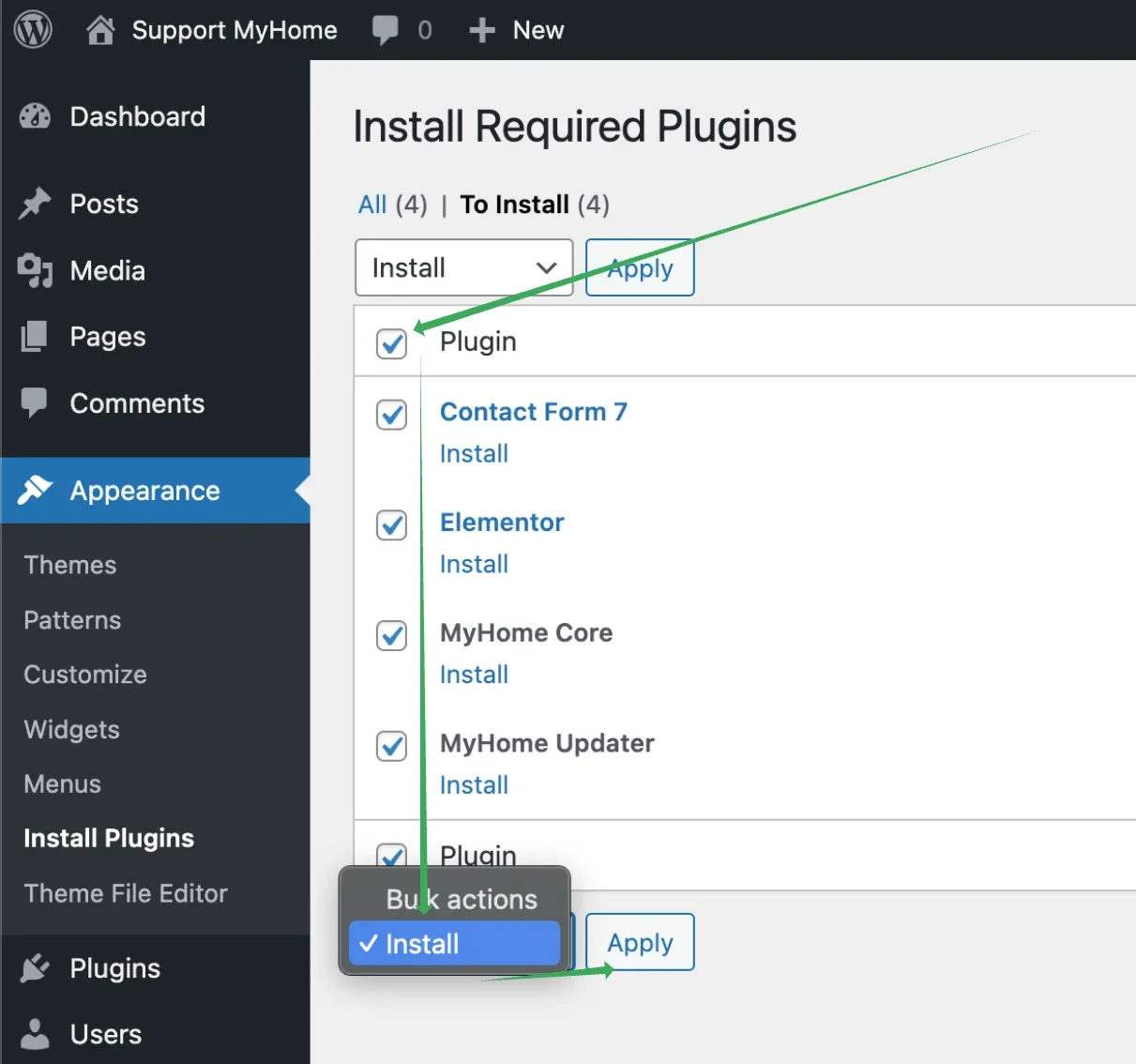
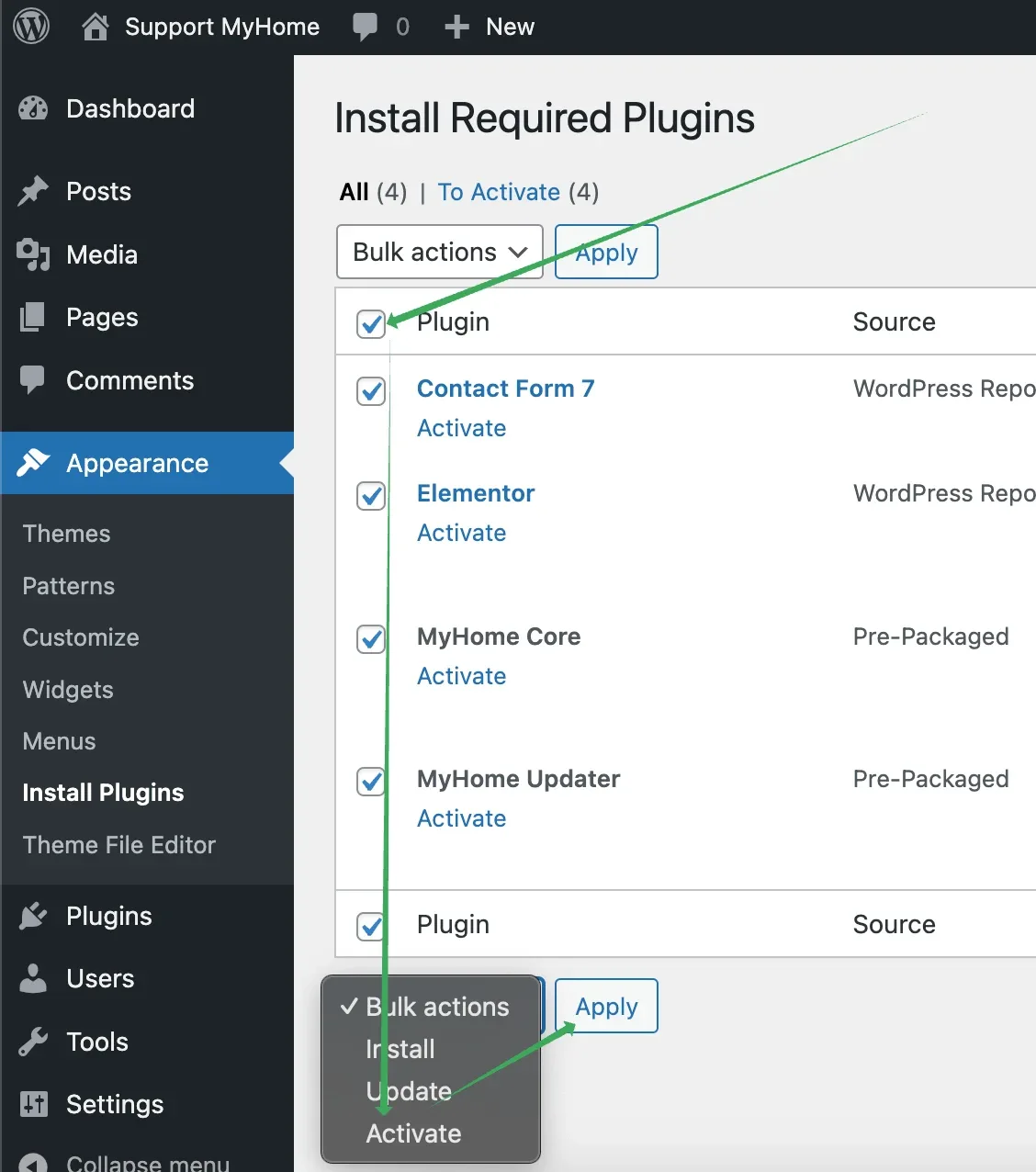
Tick the box in the header row to select every plugin, choose Install from the bulk actions menu and click Apply. Install MyHome Updater as well: it is the plugin that keeps MyHome up to date later.
-
3
Wait for the installation to finish
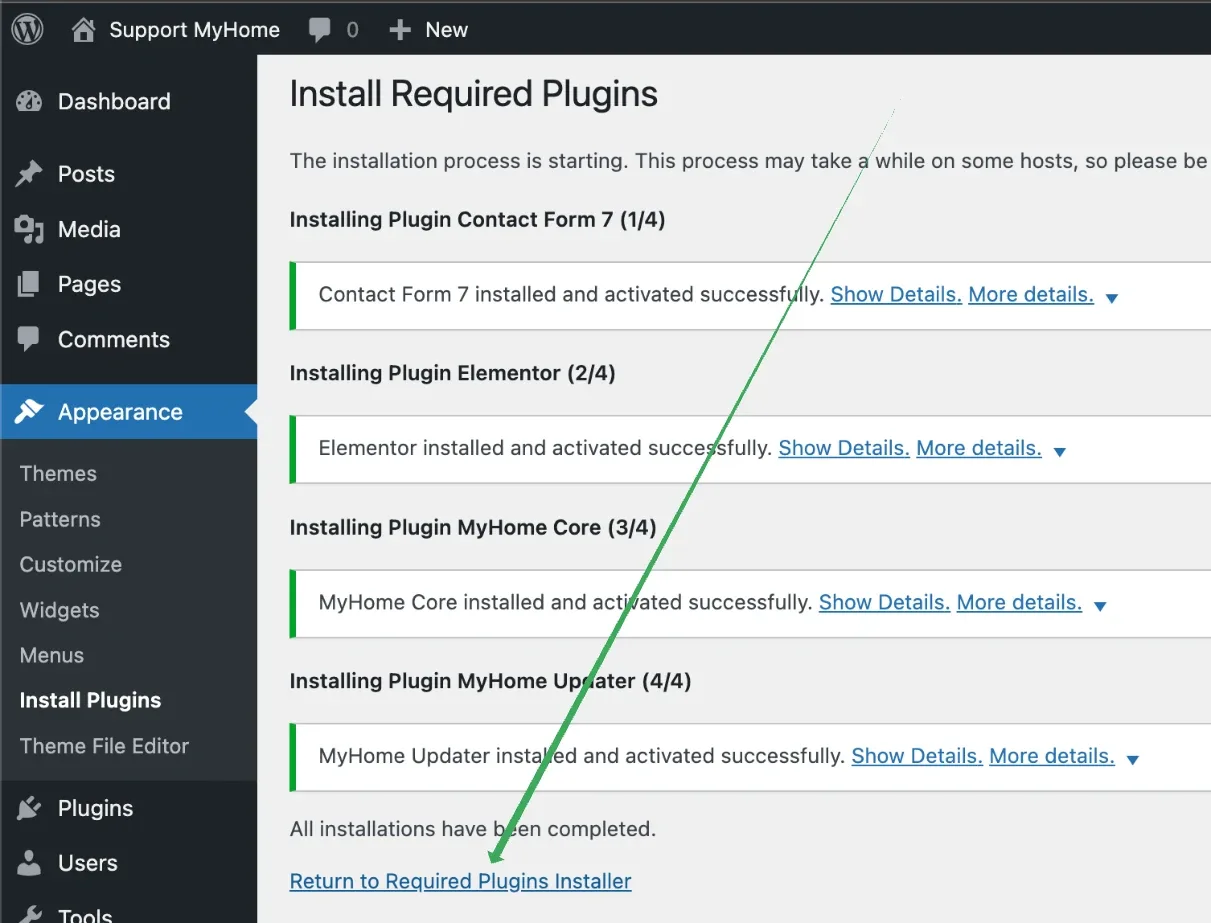
When you see All installations have been completed., click Return to Required Plugins Installer.
-
4
Activate all the plugins
Open the To Activate tab, tick every plugin again, choose Activate from the bulk actions menu and click Apply.
-
5
Import a demo
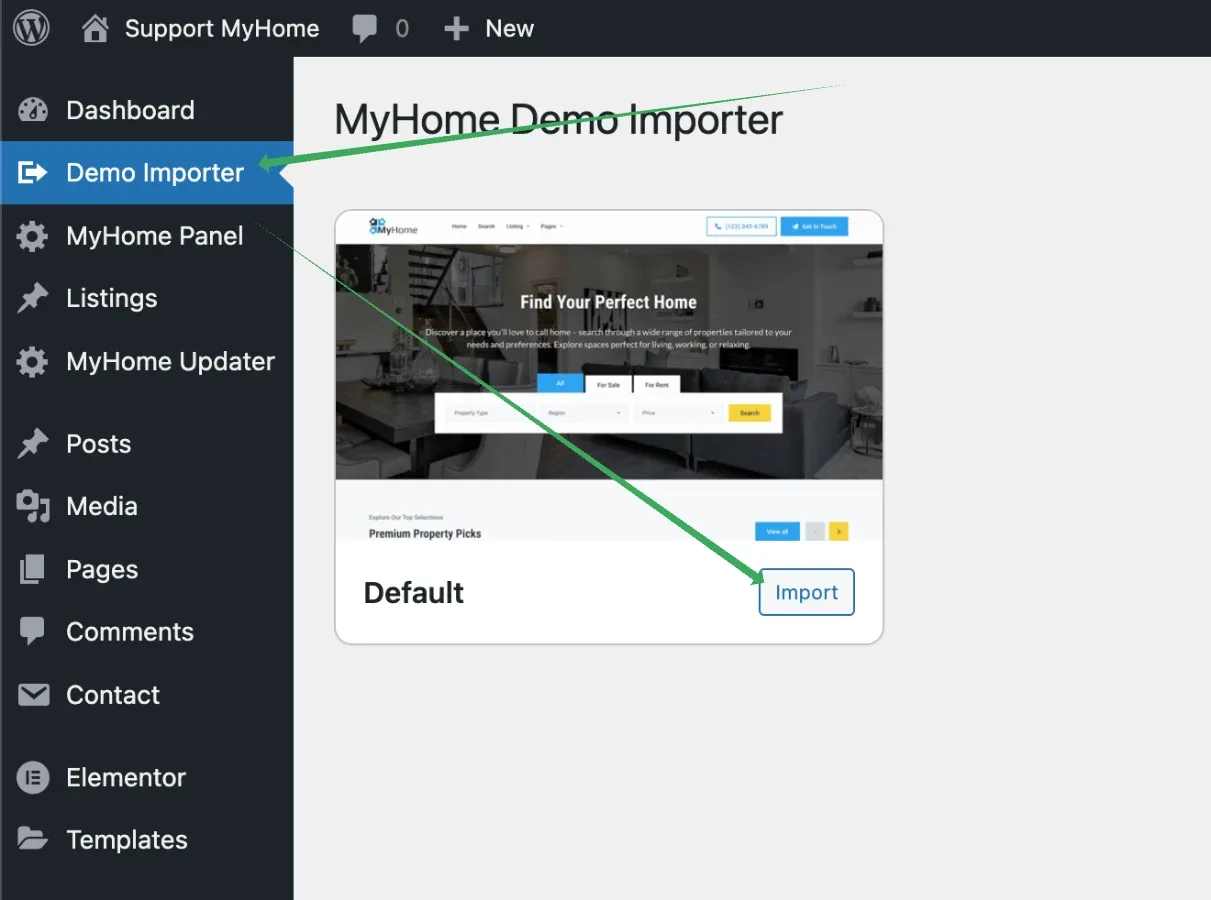
You are redirected to the Demo Importer. Import a demo before you build anything: it brings the homepage, the other pages, the listing fields and the layouts, so you edit a finished site instead of starting from nothing. Click Import next to the demo you want.
-
6
Wait for the import
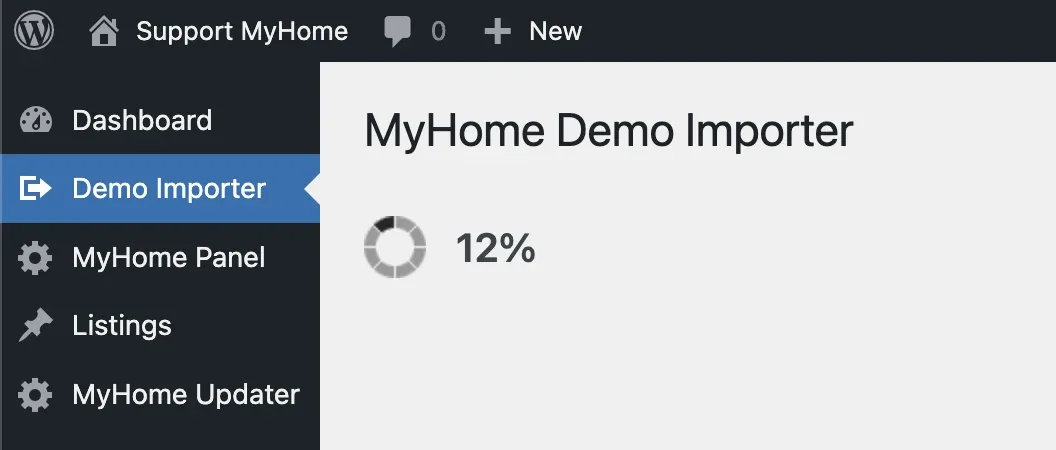
The demo content starts loading. Leave the page open until it finishes.
-
7
Start customizing
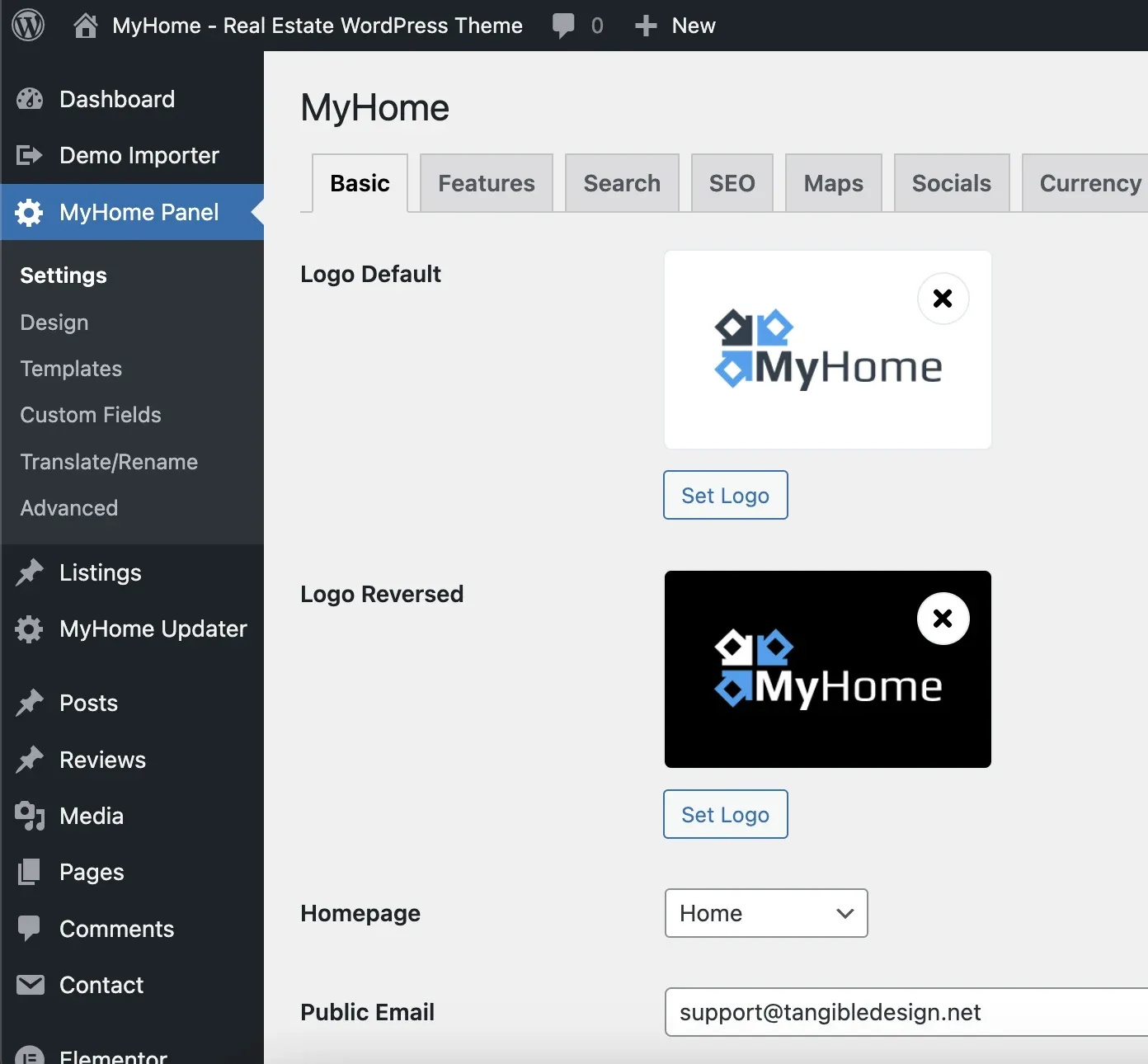
When the import is complete you land in the MyHome Panel, and the site is ready to make your own: set your logo and contact details on the Basic tab, then add your listings and edit the pages in Elementor.
In short
- Upload the installable theme zip: from Licenses in your TangibleWP account, or ThemeForest's Installable WordPress file only.
- The page builder you choose on MyHome Setup is final. Pick Elementor for a new site.
- MyHome needs Contact Form 7, Elementor and MyHome Core, and recommends MyHome Updater: install and activate all four.
- Import a demo before you build anything, then start from the MyHome Panel.
Ask the people who build MyHome
We answer by email from support@tangiblewp.com. With Premium Support, we also fix your site when something breaks.
We can also run your site for you, or build a new one.
Was this guide helpful?