Facebook “Share” button configuration. Adding Facebook API key (free) that allow to display featured image correctly.
Add a free Facebook App ID to the Vehica Panel so that listings shared on Facebook come out with their featured image, title and description instead of a bare link.
1 minute read
To enable “Share on Facebook” with an image (example below), you need to provide a Facebook App ID in the Vehica Panel.
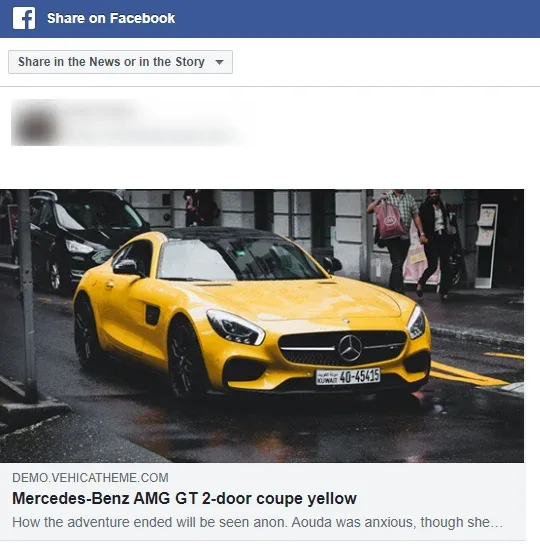
Please follow this instruction:
-
1
Open the Facebook developers site
Go to https://developers.facebook.com/ and sign in.
-
2
Add a new app
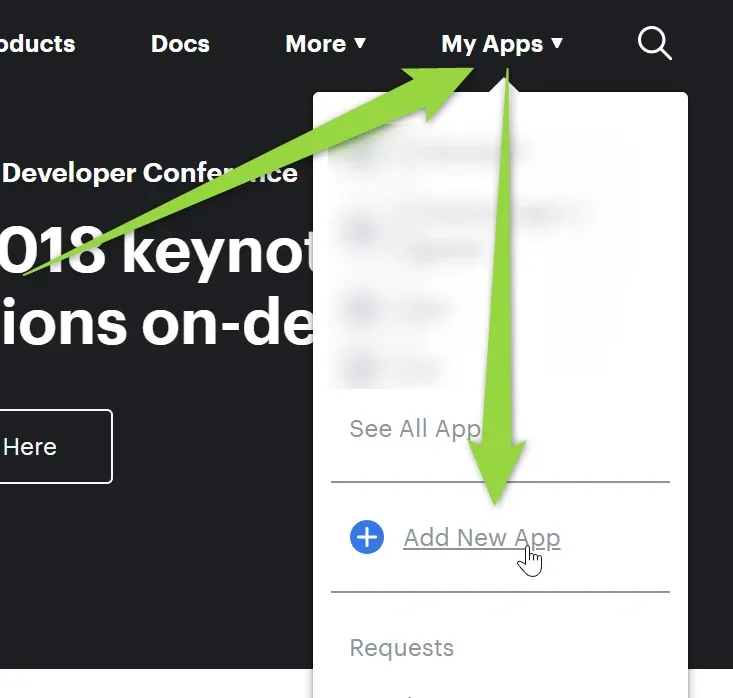
Open the My Apps menu and choose Add New App.
-
3
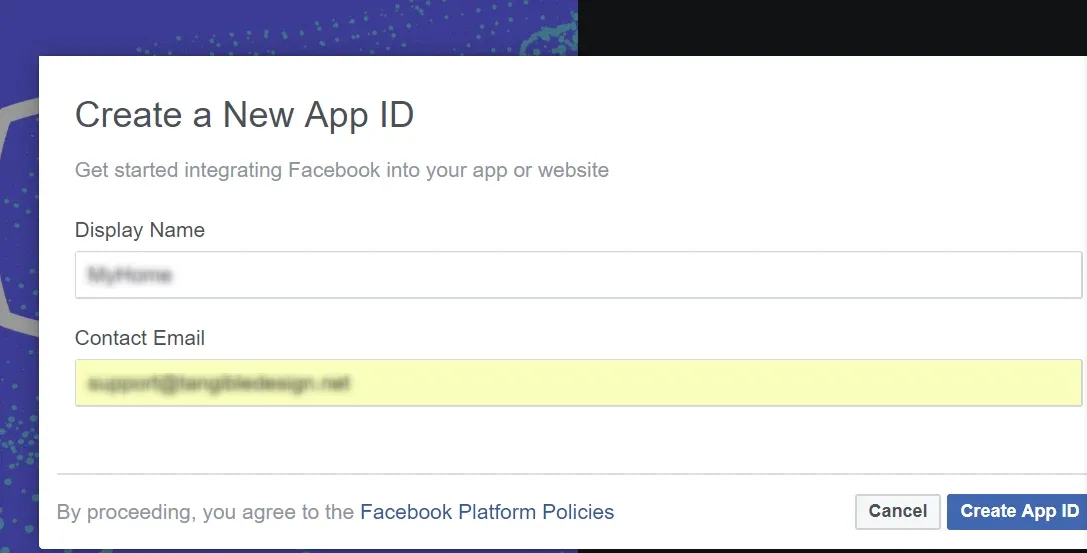
Choose a name and add your email
Fill in Display Name and Contact Email, then click Create App ID.
-
4
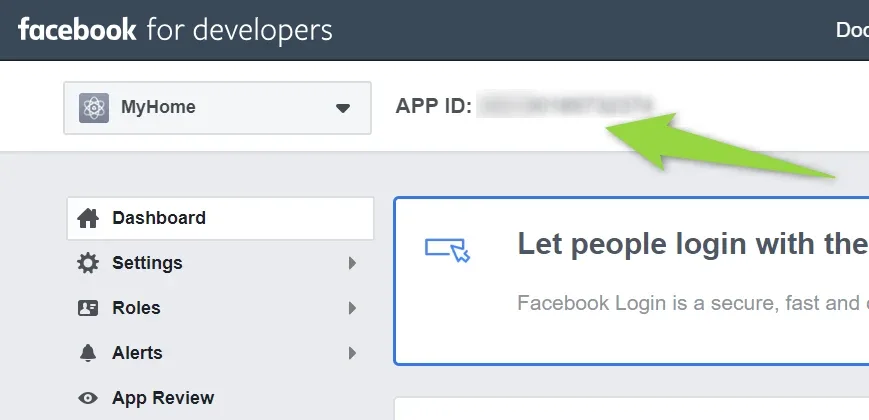
Copy the App ID
It is shown at the top of the app dashboard, next to the app name.
-
5
Add it to the Vehica Panel
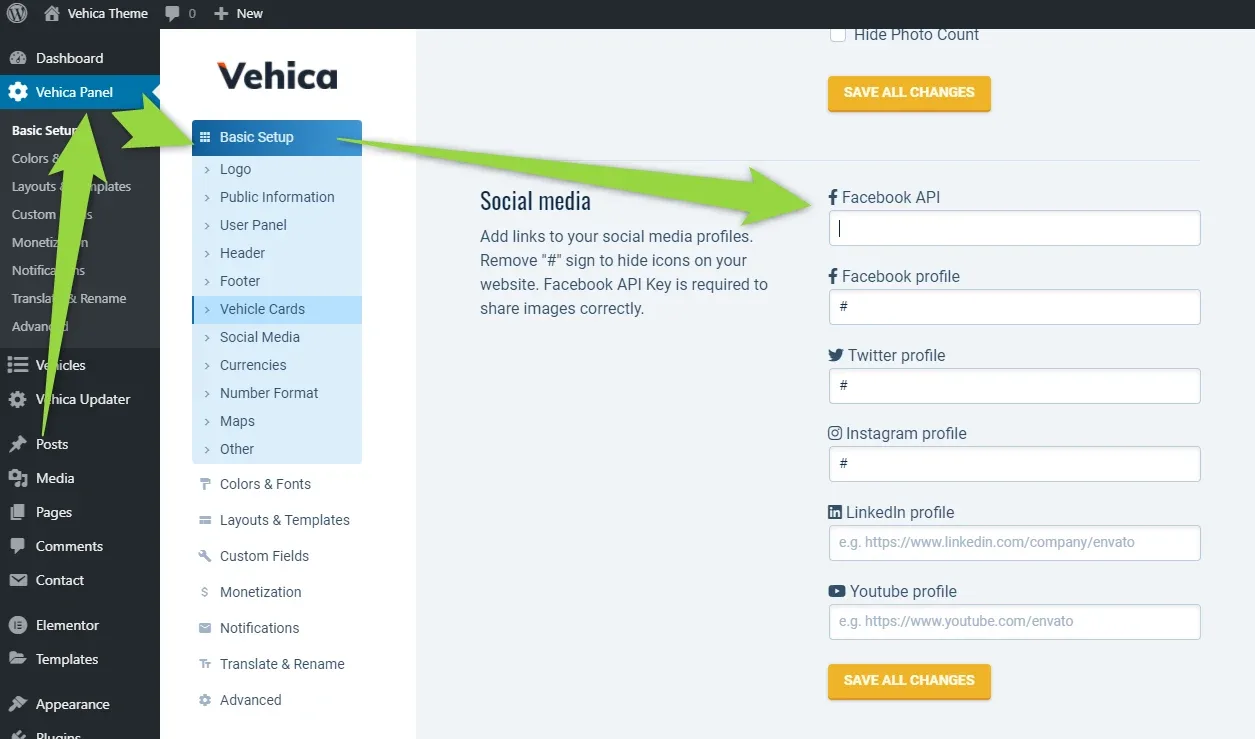
Paste it into Vehica Panel > Basic Setup > Facebook API and save.
Ask the people who build Vehica
We answer by email from support@tangiblewp.com. With Premium Support, we also fix your site when something breaks.
We can also run your site for you, or build a new one.
Was this guide helpful?